Managing a law firm
Day-to-day administration of a Kalivar law firm — members, billing, and dormant-firm behavior.
What you'll do
This page is the reference for running a law firm on Kalivar after it's set up. Use it to understand the firm dashboard, invite and manage members, control firm-wide settings, and recognize what changes when a firm goes dormant.
Firm dashboard
When you open your firm by slug (/your-firm-slug), you land on the firm context. From here you can reach Cases, Experts, Introductions, and Settings under the firm — every action you take in this context bills against the firm's plan, not your personal account.
The firm landing page surfaces the firm name and shows an Invite first members prompt to owners and admins until at least one member has been invited. Once your firm is active and you're using it day-to-day, your real work happens on Cases (your firm's case list), the Dashboard (firm-wide aggregate visible to owners and admins), and the org Settings sub-pages.
A few things to note about scope:
- Routes under your firm's URL belong to the firm — case visibility, billing, and member directory all derive from the URL, not your session.
- Personal-context routes (anything under your account settings) are for your own user, separate from any firm.
- If your firm subscription has lapsed, the firm surface is gated until it's reactivated. See Dormant firms below.
Firm analytics
Owners and admins see a Firm analytics section on the firm dashboard — a quick read on how much work the firm is doing and what it's costing, without leaving the dashboard.
A view switch toggles the section between four windows — Weekly, Monthly, Quarterly, and Yearly — each compared against the immediately preceding period of the same length (this week vs. last week, the last 4 weeks vs. the 4 before that, and so on).
The volume & velocity chart pairs two bars with a turnaround line:
- Submitted — cases published in the period.
- With opinion — of those, how many have received at least one opinion through the platform.
- Turnaround line — average time from case publication to opinion, with a toggle for 1st (first opinion), 2 ops (second opinion), and Full set (the case's complete requested opinion set).
Three cost tiles sit above the chart. All of them treat "usage" the same way: every opinion, introduction, and case-opening charge in the period, whether it's already settled or still pending (waived, failed, or refunded charges are never counted).
- Total spend — subscription cost plus usage for the period, shown with the two figures broken out underneath so it's clear what makes up the total.
- Avg / matter — total spend (subscription + usage) divided by the number of distinct matters opened in the period.
- Avg cost / case — usage alone (no subscription) divided by the number of cases opened in the period, so it reads as the marginal cost of a case rather than a number diluted by the flat subscription fee.
Every tile, and the chart's case totals, shows a percentage change against the prior period of equal length; no change is shown when there's no prior-period activity to compare against.
Owner and admin only
Firm analytics is visible only to firm owners and admins. Members do not see this section on the dashboard.
Inviting members
How you add members depends on your firm's plan type.
Pro firms — self-serve
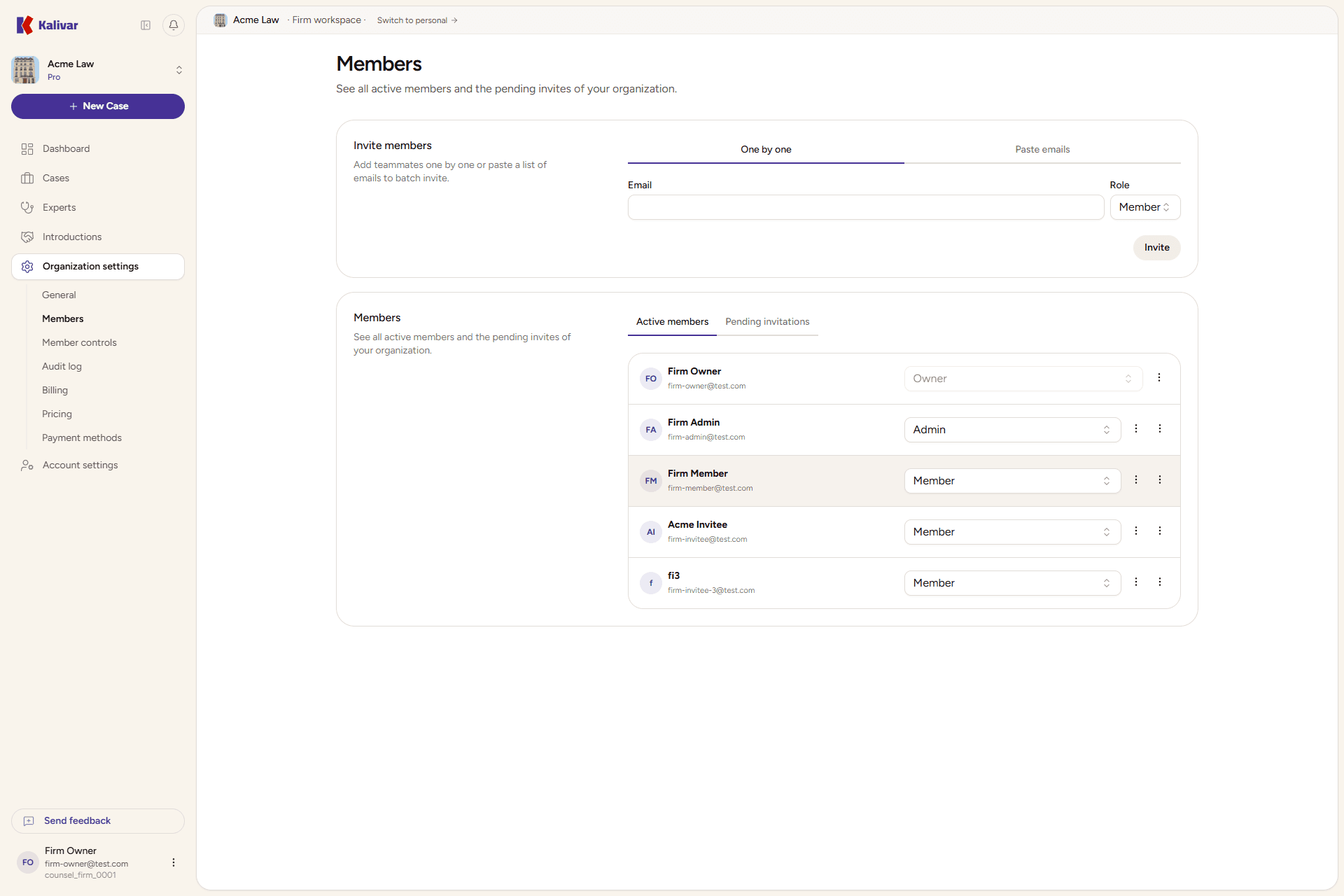
Open Settings → Members under your firm to manage the roster.
- Invite a single member. Enter the attorney's email, pick a role (member, admin, or owner), and send. They receive an invitation link by email. Once they accept and finish attorney onboarding, they appear in the members list and can post cases against the firm's plan.
- Invite a batch. Use the Batch invite tab to paste multiple emails at once when you're spinning up a team. Roles are applied uniformly to everyone in the batch; you can adjust individual roles afterward.
- Pending invitations. The members page shows outstanding invitations alongside accepted members. You can revoke an invitation from the action menu before the recipient accepts; revoked invitations cannot be redeemed.
- Removing a member. Use the action menu on a member row to remove them. Removal is immediate — they lose access to the firm context, but their case history, opinions, and audit-log entries stay intact.
Billing adjusts automatically: adding a member increases your next charge; removing one reduces it (Stripe prorates the difference at standard catalog pricing).
Members complete attorney onboarding themselves
You're inviting the user, not provisioning them. After accepting, the invitee lands on Kalivar onboarding, picks the I'm an attorney option, and finishes their bar credentials and address themselves. Their role inside the firm (member, admin, or owner) is independent of their attorney credentialing.
Enterprise firms — account-team managed
Enterprise firms have a fixed seat allotment managed by the Kalivar account team. From the Members page you can:
- View the current roster and each member's role.
- Change a member's role (member → admin, etc.).
- Remove a member.
You cannot invite new members from the app. The Members page shows a notice to contact your account manager in place of an invite form. To add seats or change your allotment, reach out to the Kalivar account team.
Member changes don't change your bill on Enterprise
Enterprise seat plans are pre-paid against your fixed allotment. Removing a member frees a slot but does not reduce your subscription charge. Only the Kalivar account team can adjust the allotment or pricing. See Plan lifecycle management for details on how those changes work.
Member roles
Three roles exist on a firm:
- Owner. The firm's principal administrator. Owners can do everything an admin can do, plus the firm-wide actions an admin cannot: change member-control policies, suspend or force-logout a member, reassign a departing member's cases, export a member's case data, view the audit log, and approve any pending purchases that are above the firm's approval threshold.
- Admin. Manages members and billing day-to-day. Admins can invite, change role, remove members, and update billing (payment method, plan, and invoices). Admins do not see the member-controls policy editor or the audit log.
- Member. A practicing attorney on the firm. Members post cases, request introductions, and review opinions against the firm's plan. By default members do not see firm billing or change other members' roles, and several cross-firm and personal-context actions are restricted by the firm's member-control policy.
The role beside each member in the directory is their current firm role; only owners and admins see the role selector inline.
Owners receive copies of team feedback
When a member submits in-app feedback (bug report, idea, or general feedback) while working in your firm, every firm owner receives an email copy of that submission. This gives you a centralized view of what your team is reporting.
Member-controls policy
Owners can restrict or expand what firm members can do beyond the defaults. The policy editor is under Settings → Member controls and is visible only to owners.
Case visibility
Two independent toggles govern how much of the firm's case list a member can see and act on:
-
See all firm cases (default: on). When on, a member can view every case posted under the firm — even cases they didn't create and aren't assigned to. This access is read-only: they can read the brief, see the timeline, and track status, but cannot edit, publish, close, or manage documents on cases they're not a team member of. When off, a member only sees cases they created themselves or have been explicitly added to as a team member.
-
See and edit assigned cases (default: on). When on, being added to a case's team (see Case teams below) gives the assigned attorney full peer access to that case — they can edit, manage documents, publish, close, and review opinions, on equal footing with the case creator. When off, team assignment grants no additional access beyond what "See all firm cases" already provides.
The two toggles combine as follows:
| See all firm cases | See and edit assigned cases | What a member sees and can do |
|---|---|---|
| On | On | Views all firm cases (read-only for non-team cases); full access to assigned cases |
| On | Off | Views all firm cases (read-only); assignment grants no additional edit rights |
| Off | On | Sees only own cases and assigned cases; full access to assigned cases |
| Off | Off | Sees only cases they created; assignment grants nothing |
Creators always have full access
A member always has full access to cases they created, regardless of these toggles. Owners and admins can view and act on every case in the firm no matter what the policy is set to.
Case teams
Any attorney on a case (the creator or a previously assigned attorney), plus firm owners and admins, can manage the case's team from the Case team panel on the case page.
- Adding an attorney. Select a firm attorney from the Case team panel and confirm. The attorney is notified ("Added to a case"). If "See and edit assigned cases" is on for the firm, the new team member immediately gains full peer access to the case.
- Removing an attorney. Use the remove action next to a team member in the Case team panel. The change takes effect immediately and is recorded in the firm's audit log.
- Equal peers. All attorneys on a case team have the same rights — there is no hierarchy among assignees. The case creator is listed as the case lead and cannot be removed from the team.
- Owners and admins. Firm owners and admins can view and act on every case in the firm regardless of team membership. They can also add or remove attorneys from any case team.
Assignment changes are recorded in the firm's audit log.
Managing cases
Firms on Pro or Enterprise can manage the cases posted under the firm themselves — correct a live case, archive it, reopen it, or duplicate it as a new case — without going through Kalivar support. The actions sit behind a ⋯ menu, available in two places: in the header of the case page, alongside the existing Close button, and at the end of each row on your firm's Cases list, so you can act on a case without opening it first. Both menus offer exactly the same actions.
Firm cases, on Pro or Enterprise
These actions apply to cases posted under the firm. A case an attorney posted in personal context belongs to that attorney and is unaffected. PAYG is solo-only, so every firm that can post a case can manage one — but the menu disappears while a firm is dormant, along with the rest of the firm surface.
Who can act
The same people who can already act on the case:
- The attorney who created it.
- Firm owners and admins, on any case in the firm.
- Attorneys assigned to the case team, when the firm's See and edit assigned cases policy is on (see Case teams).
Every one of these actions is written to the firm's audit log, which owners can read under firm settings.
What each action does
- Edit — available while a case is open. Correct the title, change the requested specialties, or move the closing date. Urgency is fixed at publication and can't be changed afterwards: it sets what the case costs, so it isn't a self-serve edit. Drafts keep using the full case form, which still edits every field.
- Archive — available on drafts and closed cases. The case drops out of your active case list; its opinions and payment records are preserved. An open case has to be closed first, so no expert's in-progress work is stranded. Archiving is final — there's no un-archive.
- Reopen — available on a closed case that rewarded no opinions, and only once. The case returns to open with a fresh closing deadline — or with whatever time its two-window budget has left, if you already extended it once (see Two runs per case). Matching runs again so newly eligible experts enter the pool, and the experts who fit the case are notified that it's accepting opinions again. Reopening is free — no opinions were rewarded, so nothing was charged.
- Duplicate as new case — offered when reopening isn't available: the case rewarded at least one opinion, or it has already used its reopen. This creates a new draft carrying over the case details, specialties, and documents, titled
(REOPENED)followed by the original title. It stays a draft until you publish it, and publishing it works exactly like publishing any other case. By default the original case and its opinions are untouched, and both cases sit in your active list.
Reopen and Duplicate never appear together. Reopen is the free path, so it's offered whenever it's genuinely available; Duplicate only appears once reopening is off the table.
Also archive the original case
Because the copy carries the same matter reference and a near-identical title, the duplicate dialog offers an optional Also archive the original case. It is off by default and resets to off every time you open the dialog, so the original is only ever filed away when you ask for it on that case.
Tick it and the original moves to Archived in the same step, leaving one case in your active list instead of two. The original keeps its opinions and payment records and stays readable under the Archived filter — but archiving is final, so leave it unticked if you want the original in your active list while you decide whether to publish the draft at all. The confirmation tells you whether the original was archived, and the archive is recorded in the firm's audit log as its own entry alongside the duplication.
Two runs per case
A case gets two runs in total — the original publication plus at most one reopen. Two rules enforce that budget from different angles, and they line up exactly:
- One reopen. Once a case has been reopened, the Reopen action is gone and Duplicate takes its place.
- A closing date can't be pushed past two windows. When you edit an open case, the new closing date can be at most two full closing windows measured from the day the case was published — a rush case gets two rush windows, a standard case two standard ones. Overshoot and the save is rejected, telling you the longest a case of that urgency can run.
A case published on day 0 with a five-day window closes on day 5; one reopen carries it to day 10, which is precisely the ceiling an edit would have allowed.
That same two-window ceiling is what a reopen is measured against, so extending and reopening can't be combined into a third run. Reopen a case you never extended and you get your full window back. Reopen one you extended part-way and you get the time still left under the ceiling. Spend the whole budget on an extension and Reopen gives way to Duplicate, even though you never reopened the case.
When a case genuinely needs more time than that, duplicate it. The new case starts with a fresh two-run budget of its own — that's the trade.
Kalivar can still reopen beyond the limit
A third run without duplicating is a support action rather than a self-serve one. If a case needs it, contact Kalivar — an operator reopen is recorded in your firm's audit log like any other change to the case.
Extended cases
Any case whose closing date runs later than its default window would have given carries an Extended badge. It appears everywhere the case is shown — your firm's case list, the case page, and the expert case feed — so an expert weighing whether to invest hours in an opinion can see that the window moved. A reopened case carries the badge too: its fresh deadline is by definition later than a single normal run would have produced.
When a case reopens or its deadline moves later, the experts matched to it who haven't submitted yet receive a notice that there's more time. Experts who already submitted aren't notified — more time changes nothing for them, and the message would just be noise.
Org-level billing override
Most firms run on a standard plan tier. Some run on Enterprise, which is per-organization pricing — the firm negotiates a custom rate per case, opinion, and introduction, optionally with invoiced net terms instead of per-action card charges.
When an Enterprise pricing override is in effect for your firm:
- The Pricing page under firm settings (
/your-firm-slug/settings/billing/pricing) shows the negotiated rates for every paid action, replacing the standard catalog. - If invoicing is enabled, your firm pays via monthly invoice on the agreed net-day terms (commonly net 30) rather than card-on-file.
- The override is set during Enterprise setup. Talk to Kalivar to adjust the rates or invoicing terms on an existing override — it isn't a self-serve change.
By default, only owners and admins can read the Pricing page. Owners can opt-in members to see pricing read-only via the member-controls policy if the firm wants the rates visible to attorneys posting cases.
Dormant firms
A law firm is active as long as it has at least one subscription in active or trialing state. If the subscription is canceled, fails to pay, or expires, the firm becomes dormant.
When the firm is dormant, every firm-context route except billing renders the Dormant firm gate instead of the page content. The gate shows different copy depending on who's looking:
- Owners see a direct Reactivate button that takes them to firm billing settings to fix the subscription. The body copy mentions whether the cause was cancellation, past-due payment, an unpaid invoice, or an incomplete checkout.
- Admins and members see a calmer message that names the firm owner, with a mailto: link to email the owner about reactivating. Admins and members cannot reactivate themselves.
- Everyone keeps a Switch to personal escape hatch from the gate so they can leave the dormant firm context and continue with their personal account.
Once a subscription returns to active or trialing, the gate clears on the next page load and the firm surface returns to normal. Cases, members, and history are not deleted while dormant — only access to firm-context actions is paused.
Charges do not silently fall back to a member's personal account
While a firm is dormant, paid actions members try to take are blocked at the source. The platform does not quietly route a member's case to their personal billing — the action is held until the firm reactivates or the member explicitly switches to personal mode.
Tips
- An admin can be downgraded to member from the role selector in the members table — no separate flow.
- Removing a member ends their access immediately; their case history and opinions stay associated with the firm and remain visible to other members.
- Suspending a member is reversible; removal is final. Use suspension when you're investigating something and removal once you're sure.
- Audit log and member-control policies are owner-only — admins don't see them.
- Reactivating a dormant firm clears the gate immediately for owners; admins and members may need to refresh to see the firm surface return.
- Enterprise firms: removing a member frees a slot but does not change the subscription charge — seats are pre-paid against your fixed allotment. Contact your account manager to adjust the allotment.
- Pro firms: billing auto-adjusts to the member count. Stripe prorates the difference when you add or remove a member mid-period.