Feed and case stream
Find matched cases, accept or decline assignments, and manage your active load.
What you'll do
By the end of this page, you'll know how to read the case feed, decide which cases to take, decline cleanly when one isn't a fit, and keep your active load under control.
Before you start
- A verified credential record and at least one specialty selected. Without these, no cases match you.
- A few minutes to scan the feed. Reading the full feed before committing beats accepting the first card you see.
Decline is safe
Declining a case does nothing to your standing or your future feed. Declining has no effect on how cases match to you, and attorneys never see declines. Only accept cases you intend to write — declining the rest is the right behavior, not a cost.
Step-by-step
-
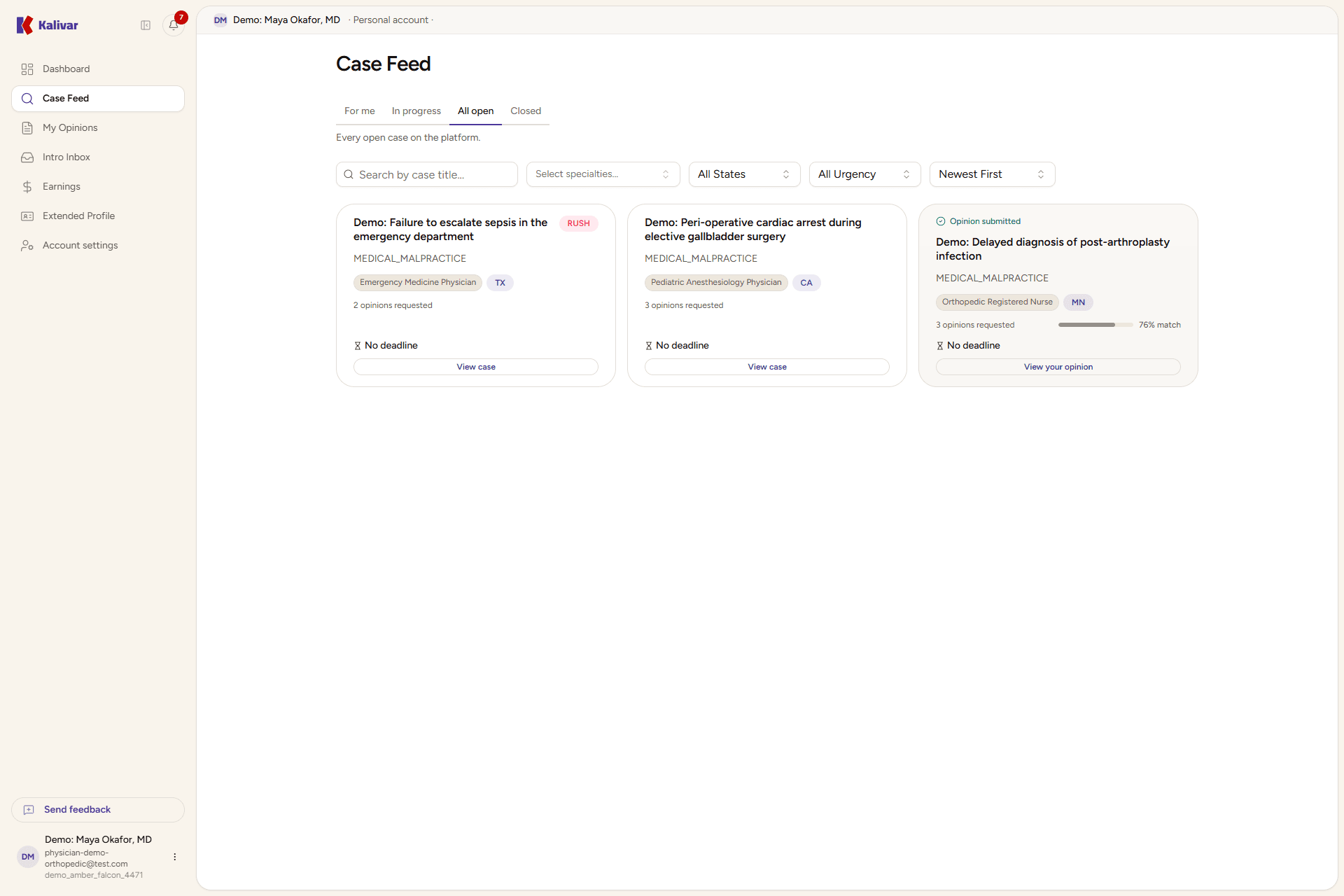
Open Case Feed from the sidebar. The feed loads on the For me tab, which shows open cases that match your specialties and that you haven't opined on yet. You can also switch to In progress (cases where you've already submitted), All open (everything live on the platform), and Closed (past cases for reference).
-
Read a feed card. Each card shows:
- Case title — a short factual headline of the medical event.
- Case type — for example, Medical Malpractice, Personal Injury, or Other.
- Specialty chips — the specialties the attorney requested, with up to three shown plus a count.
- Jurisdiction — the U.S. state badge, if the case requires a specific licensure.
- Urgency — a Rush badge appears on rush cases; standard cases show no badge.
- Extended — an Extended badge appears when the case's closing date runs later than a case like it normally gets. Either the attorney pushed the deadline out, or the case was closed and reopened for a second run. Read it as extra breathing room: the countdown on the card is always the real deadline.
- Slots requested — how many expert opinions the attorney wants on this case.
- Time remaining — a countdown to the case's close date, or the closed date for past cases.
- Match score — how well the case fits your profile, shown as a percentage.
- Your status on the case — if you have a draft, the card shows "Draft in progress"; if you've submitted, it shows "Opinion submitted" and recedes visually.
Filter the feed by specialty, U.S. state, and urgency, sort by Newest first or Closing soon, and search by title from the same toolbar.
-
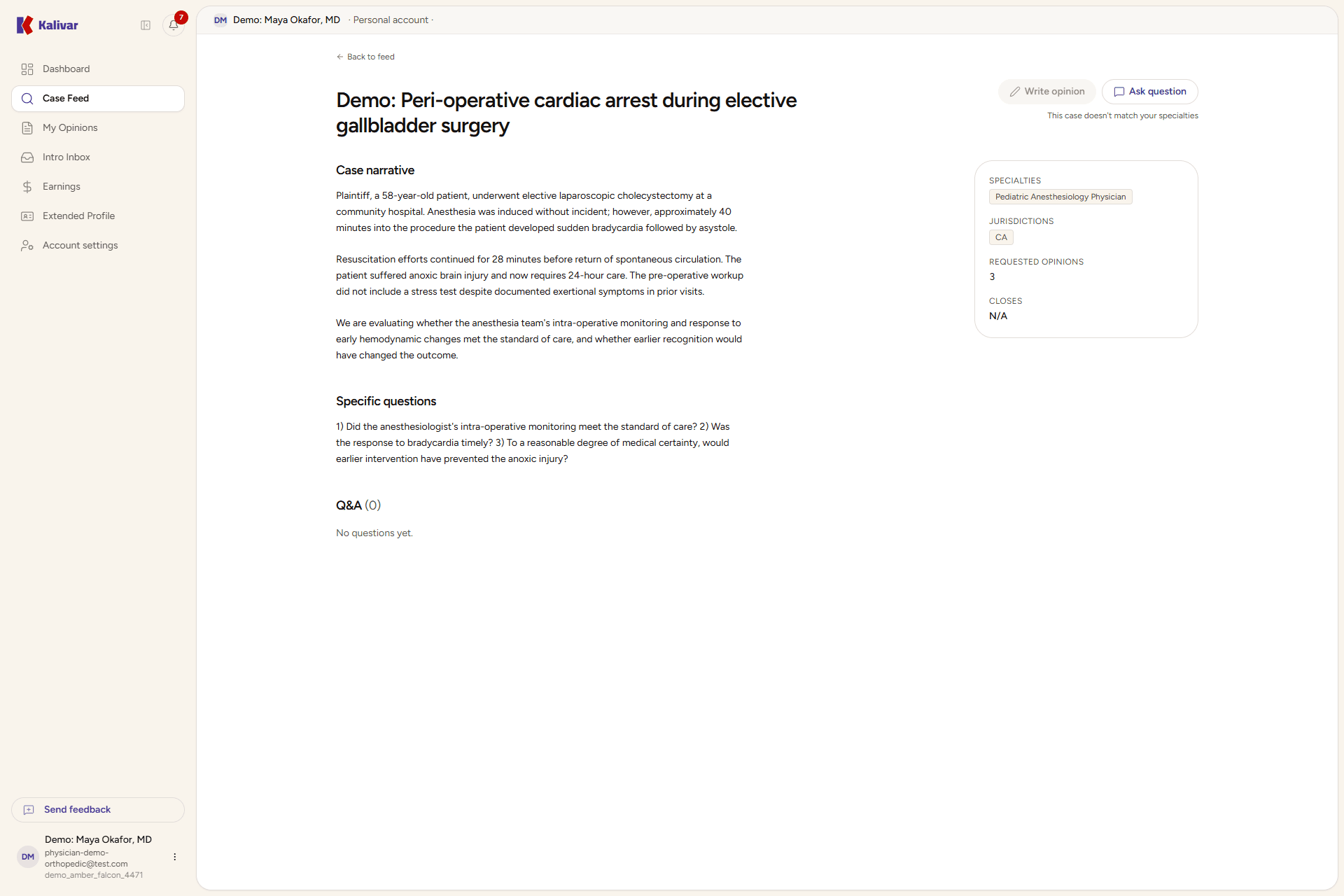
Open a case from the card. The case detail shows the narrative, any specific questions the attorney asked, an at-a-glance panel with patient and event details, and any attachments. You can read any open case here. Use Ask question to post a clarifying question to the attorney before you commit.
-
Accept the case by clicking Write opinion. The button is active on cases that match your specialty and licensure; on cases that don't, it's unavailable and you'll see a short note that the case isn't currently available for your specialty or licensure. When you start, the case stays yours while you draft — your draft auto-saves and the feed card flips to "Draft in progress" until you submit.
-
Decline by simply not opening or accepting the card. There's no decline button and no friction — the case stays in the feed for other matched experts, and your standing is unchanged.
-
Pace your active load. Opinions are due before the case closes; the countdown on each card is your hard deadline. If you have several drafts open at once, the In progress tab is the fastest way to triage them.
-
If you discover a conflict — for example, you recognize the attorney, the defendant, or the events — declare it through the introduction request flow when applicable, or simply don't submit. Don't write an opinion on a case where you have a relationship to a party.
You're told when a case you match gains time
If a case you're matched to is reopened or its deadline is pushed out, you get a notification — "Case reopened" or "Deadline extended" — linking straight back to the case in your feed. It goes only to matched experts who haven't submitted yet, so a case you already wrote on won't ping you. You can turn these off under Settings → Notifications, in the Cases group.
Tips
- Decline freely. Declining costs you nothing; over-committing and missing a deadline costs you a lot.
- An Extended badge is a good sign on a case you were interested in but short on time for — it means the window is longer than a case like it usually gets.
- Saving your specialty preferences refreshes what shows up under For me — the feed reflects your current profile, not a snapshot.
- The match score is a guide, not a verdict. A high score means the case looks like a strong fit; read it before you commit.
- If your For me tab is empty, it usually means your specialties or state licensure aren't set yet — the feed will prompt you to add them. You can still browse All open to read any live case, but you can only write an opinion on cases that match your specialty and licensure.